User Journey
The Users Journey menu offers insight into user compliance activities and personnel documentation. It enables compliance monitoring, document management, and user status tracking throughout the user lifecycle.
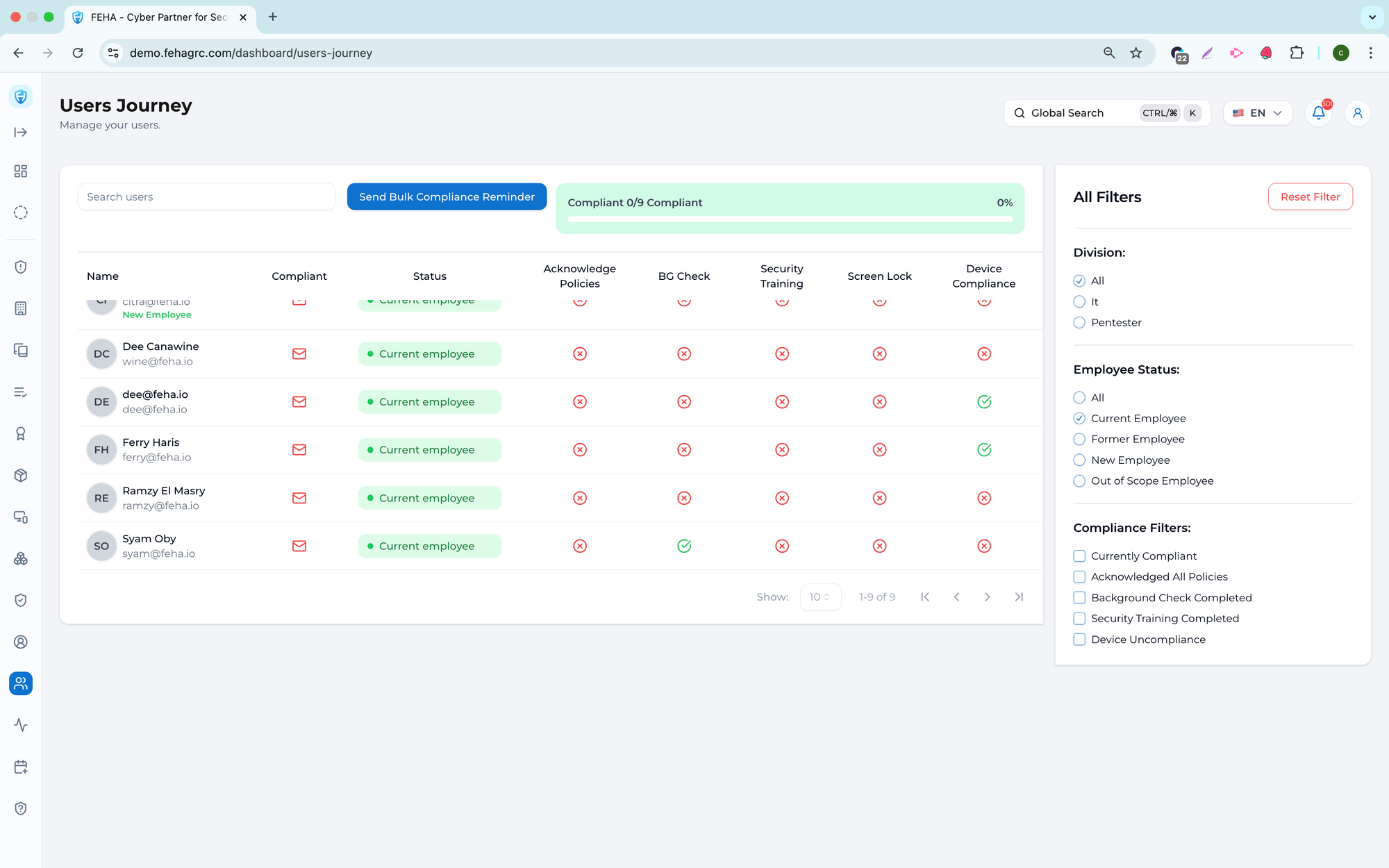
Sending a Compliance Reminder
Use these steps to send a compliance reminder to a user.
- Open the Users Journey page.
- Select the Compliance Reminder option on the relevant user row.
- Select Send Reminder to confirm.
Note: Compliance reminders notify users to complete required actions.
Updating User Status
Follow these steps to update a user's status.
- Open the Users Journey page.
- Select the employee status option on the relevant user row.
- Select the desired employee status.
Note: Updating status impacts the user compliance lifecycle.
Filtering Users
Follow these steps to filter users by available criteria.
- Open the Users Journey page.
- Select values in the All Filters section.
- Review the list of users that match the selected criteria.
Searching Users
Use these steps to search for a specific user.
- Open the Users Journey page.
- Select the Search User field.
- Enter a name or keyword.
- Review the list of matching users.
Uploading Background Check Documents
Follow these steps to upload a background check document for a user.
- Open the Users Journey page.
- Select the relevant user row.
- Review the Personnel Detail modal.
- Open the Background Check section.
- Select Upload.
- Choose a file from local storage.
- Select Upload Selected File.
Uploading Security Training Documents
Follow these steps to upload a security training document for a user.
- Open the Users Journey page.
- Select the relevant user row.
- Review the Personnel Detail modal.
- Open the Security Training section.
- Select Upload.
- Choose a file from local storage.
- Select Upload Selected File.
Uploading Screen Lock Documents
Follow these steps to upload a screen lock compliance document for a user.
- Open the Users Journey page.
- Select the relevant user row.
- Review the Personnel Detail modal.
- Open the Screen Lock section.
- Select Upload.
- Choose a file from local storage.
- Select Upload Selected File.
Deleting Background Check Documents
Follow these steps to delete a background check document.
- Open the Users Journey page.
- Select the relevant user row.
- Review the Personnel Detail modal.
- Open the Background Check section.
- Select Delete on the relevant document row.
Deleting Security Training Documents
Follow these steps to delete a security training document.
- Open the Users Journey page.
- Select the relevant user row.
- Review the Personnel Detail modal.
- Open the Security Training section.
- Select Delete on the relevant document row.
Deleting Screen Lock Documents
Follow these steps to delete a screen lock document.
- Open the Users Journey page.
- Select the relevant user row.
- Review the Personnel Detail modal.
- Open the Screen Lock section.
- Select Delete on the relevant document row.
Viewing Device Compliance Details
Follow these steps to view a user's device compliance information.
- Open the Users Journey page.
- Select the relevant user row.
- Review device compliance information in the Personnel Detail modal.