Users
Getting Started with Users
What are Users?
Users represent individuals within or associated with your organization who interact with the system. Proper user management ensures the right people have appropriate access, responsibilities, and visibility based on their roles.
With User Management, you can:
- Control access – Assign permissions based on responsibilities
- Define roles – Distinguish between internal and external users
- Ensure accountability – Assign ownership across modules
- Maintain security – Restrict access for inactive or out-of-scope users
User roles
Users are categorized based on their relationship with the organization:
- Employee – Internal staff members
- Consultant – External users or third-party contributors
Permissions
Permissions define what actions a user can perform in the system:
- Company Admin – Full system access and configuration control
- Employee – Standard access for general users
- Control Owner – Responsible for managing controls
- Evidence Owner – Responsible for maintaining evidence
- Policy Owner – Accountable for policies
- Policy Delegator – Can assign or delegate policy responsibilities
- Vendor Owner – Manages vendor relationships
- Risk Owner – Responsible for identifying and assessing risks
- Risk Treatment Owner – Manages risk mitigation actions
- Vendor Assessment Owner – Responsible for vendor evaluations
User status
User status reflects their current relationship and access eligibility:
- Current Employee – Active user with system access
- Former Employee – No longer part of the organization
- Out of Scope – Not included in current processes or access
What you see in the overview
The user overview provides key information such as:
- Name and role – User identity and classification
- Permissions – Assigned access rights
- Status – Current employment or engagement status
- Assigned responsibilities – Ownership across risks, controls, policies, or vendors
- Last activity – Recent system usage
How User Management connects
User Management is central to all modules:
- Linked to risks – Assign Risk and Treatment owners
- Linked to policies – Assign Policy Owners and Delegators
- Linked to vendors – Assign Vendor and Assessment owners
- Linked to controls and evidence – Ensure accountability
Tip
Regularly review users with Former Employee or Out of Scope status to ensure they no longer have active access. This helps maintain system security and compliance.
Managing Users
The Users menu allows you to manage user accounts, including creating users, updating profiles, managing statuses, and performing account-related actions.
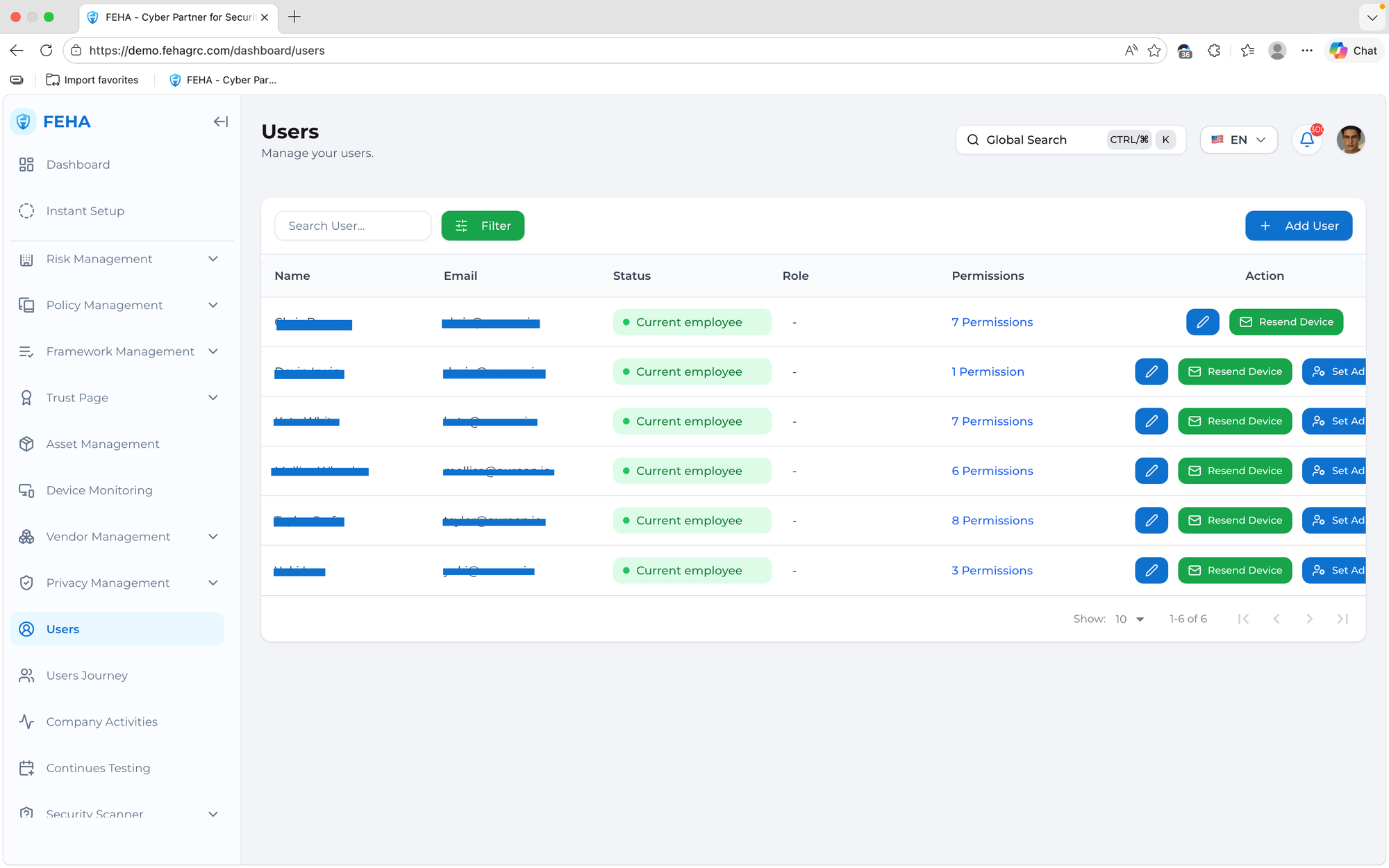
Adding a New User
To create a new user account, follow these steps:
- Open the Users page.
- Select Add User.
- Fill in the required information in the user form.
- Select Create to save the new user.
Updating a User
To update an existing user account, follow these steps:
- Open the Users page.
- Select Edit on the relevant user row.
- Edit the user information as needed.
- Select Update to save your changes.
Updating User Status
To change a user's status, follow these steps:
- Open the Users page.
- Select the status option for the relevant user.
- Select the desired status.
Note: Changing a user's status will affect their access to the platform.
Resending Device Invitation
To resend a device-related invitation or configuration, follow these steps:
- Open the Users page.
- Select Resend Device on the relevant user row.
Note: Use this action if device setup needs to be restarted.
Filtering Users
To filter the user list, follow these steps:
- Open the Users page.
- Select Filter.
- Enter the desired filter values.
- Review the list of users that match the selected criteria.
Searching Users
To search for a specific user, follow these steps:
- Open the Users page.
- Select the Search User field.
- Enter a name or keyword.
- Review the list of users that match your search.