Asset Management
Getting Started with Asset Management
What is Asset Management?
Asset Management is the process of identifying, organizing, and maintaining all assets within your organization. This includes both physical and digital resources that support business operations.
By managing assets effectively, you can:
- Maintain visibility – Keep a centralized inventory of all assets
- Improve security – Identify and protect critical assets
- Support risk management – Link assets to risks and controls
- Ensure accountability – Assign ownership and responsibility
- Optimize usage – Track and manage asset lifecycle
Asset types
Assets are categorized based on their nature:
- Virtual – Digital assets such as systems, applications, databases, and cloud resources
- Physical – Tangible assets such as hardware, devices, and equipment
What you see in the overview
The asset overview provides key information for each asset:
- Asset name and type – Identification and classification (Virtual or Physical)
- Owner – Person or team responsible for the asset
- Description – Current condition or lifecycle stage
Tip
Start by registering your most critical assets first (e.g., core systems and sensitive data). This ensures that your risk and compliance efforts are focused where they matter most.
Managing Assets
The Asset Management menu centralizes asset records, providing visibility, traceability, and consistent tracking to support security, risk, and compliance.
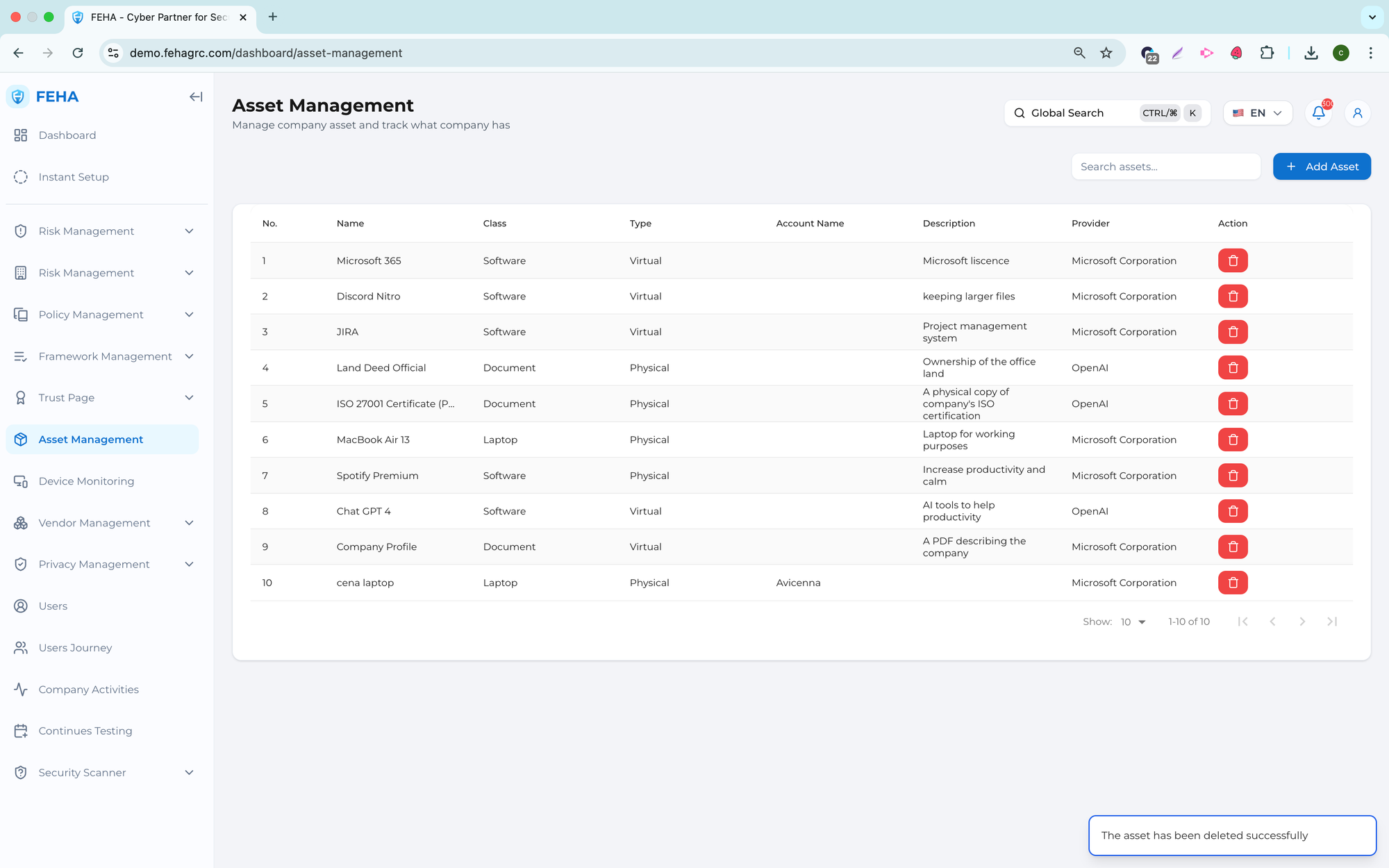
Adding a New Asset
To add a single asset to the inventory, follow these steps.
- Open the Asset Management page.
- Select Add Asset.
- Select Add Single Asset.
- Enter the required asset information in the form.
- Select Add Asset to save the entry.
Adding Assets in Bulk
To add multiple assets at once using an Excel file, follow these steps.
- Open the Asset Management page.
- Select Add Asset.
- Select Add Bulk Assets.
- Select Choose File.
- Select the Excel file containing asset data.
- Select Upload File.
- Review the asset preview table generated from the file.
- Select Add Asset to confirm.
- Review the newly added asset records in the list.
Note: Confirm the Excel file meets the required format before uploading.
Updating an Asset
To update information for an existing asset, follow these steps.
- Open the Asset Management page.
- Select the asset row to be updated.
- Modify the asset information in the form.
- Select Update Asset to save the changes.
Deleting an Asset
To remove an asset from the inventory, follow these steps.
- Open the Asset Management page.
- Select Delete on the relevant asset row.
- Confirm the deletion in the confirmation dialog.
Note: Deleted assets cannot be recovered.
Searching for Assets
This case explains how to search for assets using the search field.
- Open the Asset Management page.
- Select the Search Assets field.
- Enter the asset name or keyword.
- Review the filtered list of matching assets.