Getting Started
This guide explains how to get started with the FEHA GRC Platform and access its main features.
Logging In
Users can access the FEHA GRC Platform through the login page at fehagrc.com. The login process begins by entering an email address to receive a secure login link. After submitting the email, the system sends a login link to the user's inbox. The platform can be accessed by opening the link.
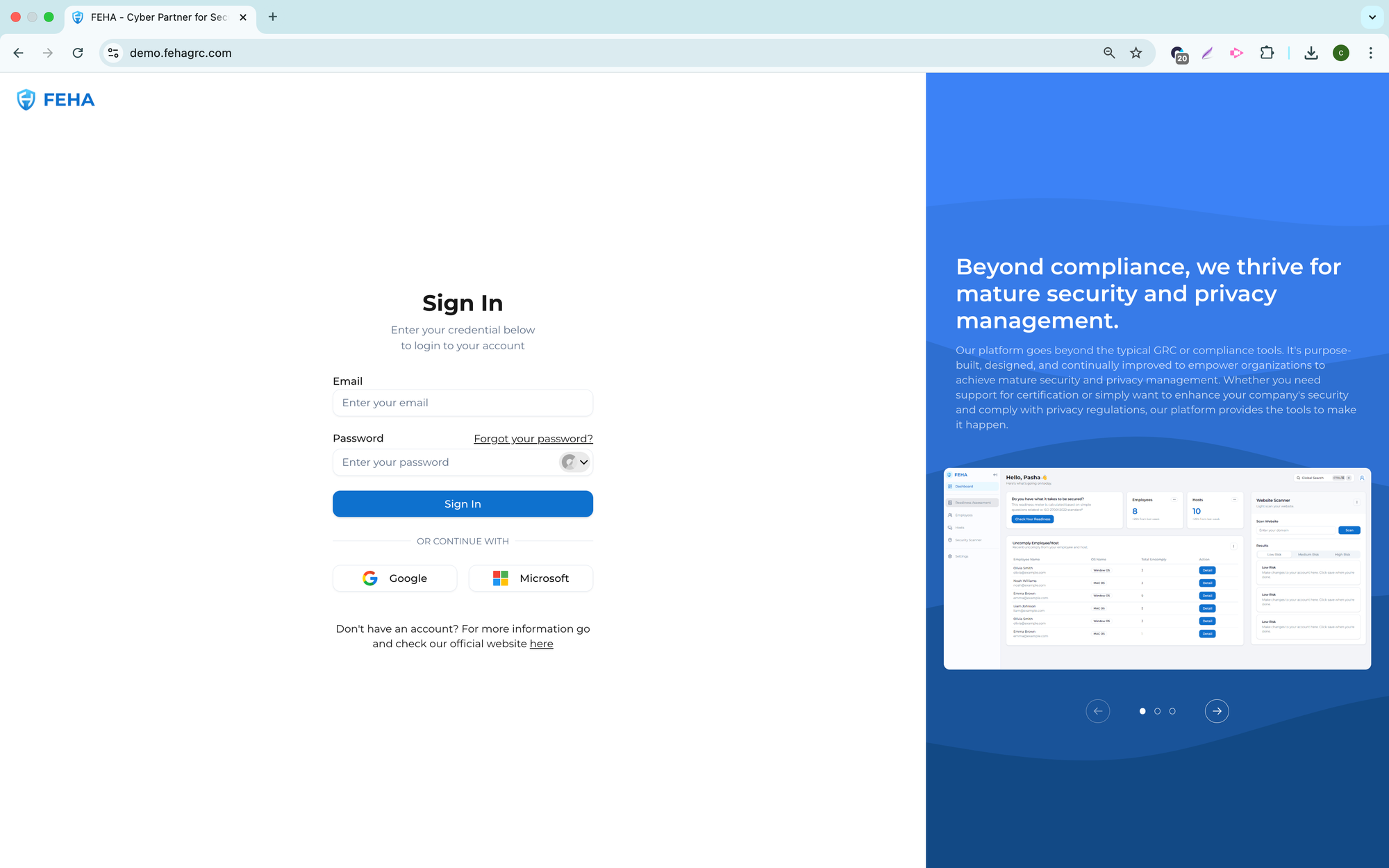
FEHA GRC also allows you to sign in with Google or Microsoft accounts. This option allows users to access the platform without waiting for a secure login link.
Note: If the login email is not received, check the spam folder or verify that the email address entered is correct.
Main Dashboard Overview
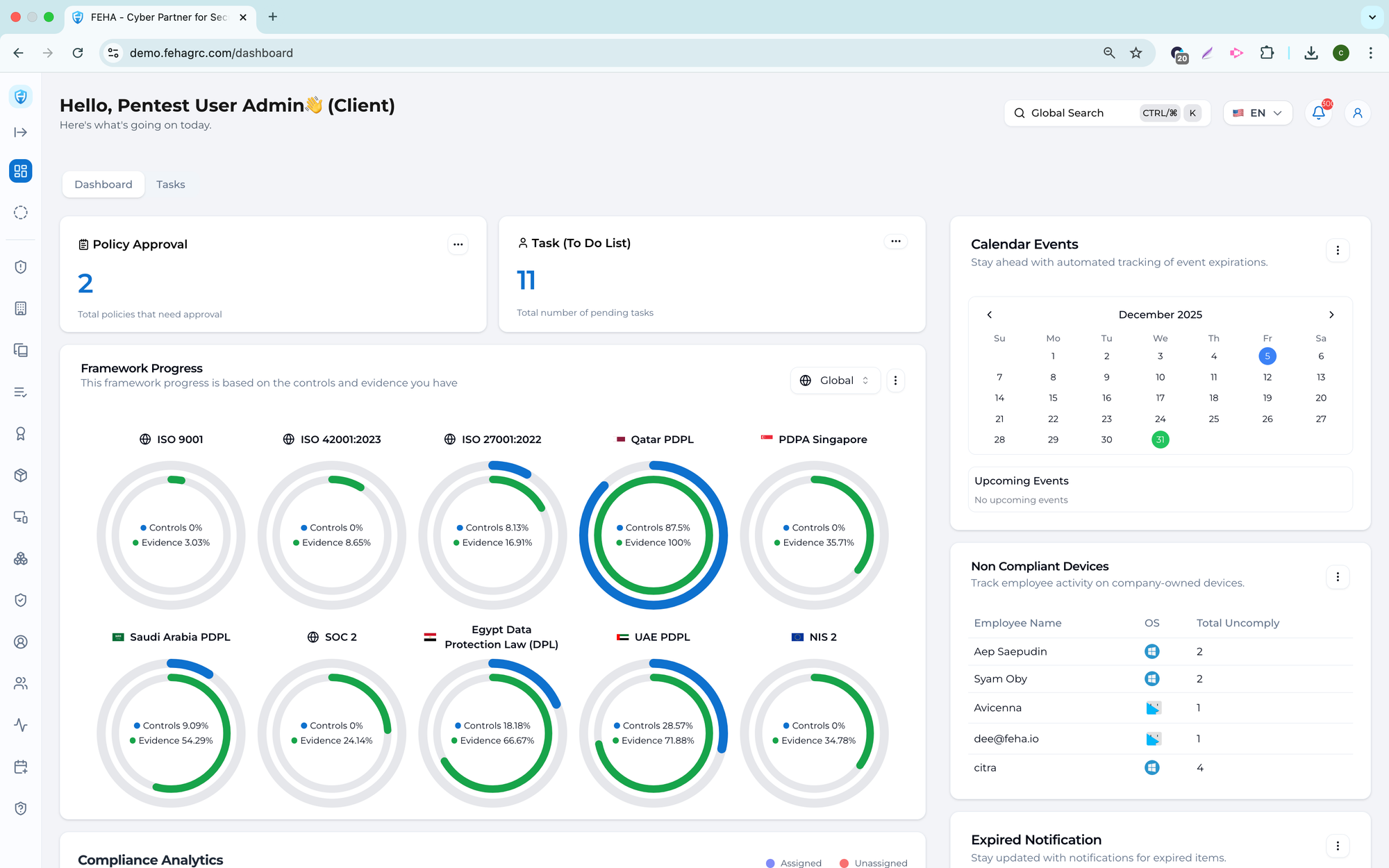
The Main Dashboard offers a centralized view of compliance, risk, and task information in the FEHA GRC Platform. Users can track progress, review pending actions, and access key modules efficiently.
Policy and Approval Summary
This section shows the total number of policies pending approval.
- After logging in, open the Main Dashboard.
- Locate the policy approval summary section.
- Review the total number of policies pending approval.
- Select the summary to view policy details if you need further review.
Task Overview
This section displays the total number of tasks currently available on the platform.
- Access the task overview section on the dashboard.
- Review the total task count to assess workload volume.
- Use this information to prioritize reviewing and assigning tasks.
Activity and Event List
This section shows recent and upcoming platform activities.
- Find the activity or event list on the dashboard.
- Review the listed activities to stay updated.
- Select an activity to view more details, if available.
Framework Progress Overview
This section presents the implemented frameworks and their current progress.
- Please navigate to the framework progress section.
- Review each framework and its completion percentage.
- Identify frameworks with low progress for follow-up actions.
- Select a framework to access detailed assessment information.
Framework Filtering by Region
This feature lets you filter frameworks by region.
- Find the region filter in the framework section.
- Select the desired region from the available list.
- Review the frameworks filtered for your selected region.
Control Assignment Progress
This section displays the percentage of assigned controls.
- Refer to the control assignment progress indicator.
- Review the percentage to evaluate assignment completion.
- Access the control module to update assignments as needed.
Policy Assignment Progress
This section shows the percentage of policies assigned.
- Find the policy assignment progress indicator.
- Review the completion percentage.
- Open the policy module to assign or update policies as needed.
Risk Assignment Progress
This section displays the percentage of assigned risks.
- Refer to the risk assignment progress section.
- Review the percentage of risks assigned.
- Go to the risk register to assign or update risk ownership as needed.
Task List
This section presents a list of tasks on the dashboard.
- Scroll to the task list.
- Review task names and statuses.
- Select a task to view its details.
Task Search
This feature enables users to search tasks by name.
- Access the task search field.
- Enter the task name or keyword.
- Review the search results.
Task Filtering by Module
This feature lets you filter tasks by module.
- Find the module filter in the task section.
- Select the desired module.
- Review the tasks displayed.
Task Filtering by Status
This feature allows tasks to be filtered by status.
- Find the status filter in the task section.
- Choose the appropriate task status.
- Review the task list, which will update according to your selection.
Task Detail Access
This feature allows users to view detailed information for a selected task.
- Select a task in the list.
- Open its detail view.
- Review the task details, including assigned users and required actions.
Instant Setup
The Instant Setup feature offers a guided starting point, enabling users to quickly begin using the FEHA GRC Platform. It allows users to access predefined tasks that support initial configuration and early compliance. This feature reduces setup time and provides clear guidance on required actions.
Viewing Task Details
This section explains how to access and review detailed information for a specific task.
- Log in to the platform and open the dashboard.
- Click the Tasks button on the dashboard.
- Go to the task dashboard page.
- Select the row for the task you want to review.
- Review the task detail page for information and required actions.