Risk Management
Risk Management
The Risk Management module offers a centralized platform to identify, filter, and manage organizational risks. Users can review risks by category, treatment, assignment status, ownership, or name. The module ensures consistent risk tracking and effective remediation monitoring.
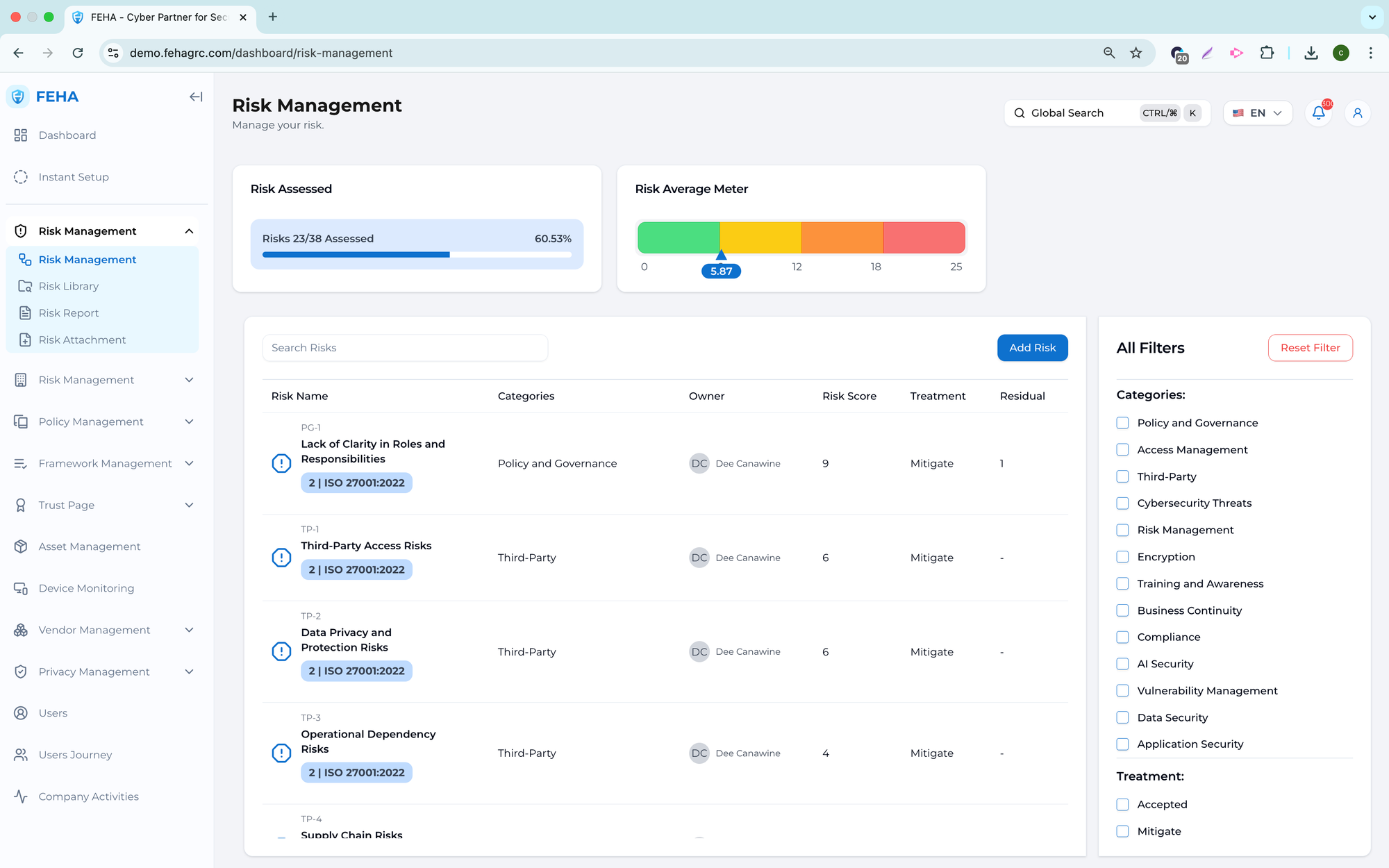
Getting Started
Tipe: Global, Lokal
Treatment: accepted, transferred, mitigated
Role: risk owner, treatment owner
Filtering Risks by Category
This feature enables users to view risks by category, allowing them to focus on specific types such as operational, technical, or compliance risks.
- Open the Risk Management page.
- Select the category filter option.
- Choose the desired risk category.
- Review the filtered risk list on the screen.
Filtering Risks by Treatment Type
This feature enables users to filter risks by treatment approach and monitor how each risk is managed.
- Access the Risk Management page.
- Select the treatment filter.
- Choose the appropriate treatment type.
- Review the filtered risks.
Filtering Risks by Assignment Status
This feature lets users filter risks by assignment status, making it easy to identify unassigned risks that need an owner.
- Open the Risk Management page.
- Select the assignment status filter.
- Choose the desired status.
- Review the filtered list of risks.
Filtering Risks by Assigned Employee
This feature enables users to view risks assigned to a specific employee, supporting accountability and workload assessment.
- Open the Risk Management page.
- Select the employee filter option.
- Choose the desired employee from the list.
- Review the assigned risks for the selected employee.
Searching Risks by Name
This feature lets users quickly locate specific risks by name, which is especially helpful when managing large risk registers.
- Open the Risk Management page.
- Select the search field.
- Enter the risk name or keyword.
- Review the displayed search results.
Risk Library
The Risk Library is a centralized repository of predefined risks that can be reused throughout the organization. It promotes consistent risk identification by providing standardized entries aligned with security, privacy, and compliance practices. The Risk Library also reduces manual effort and ensures uniform risk descriptions in the risk register.
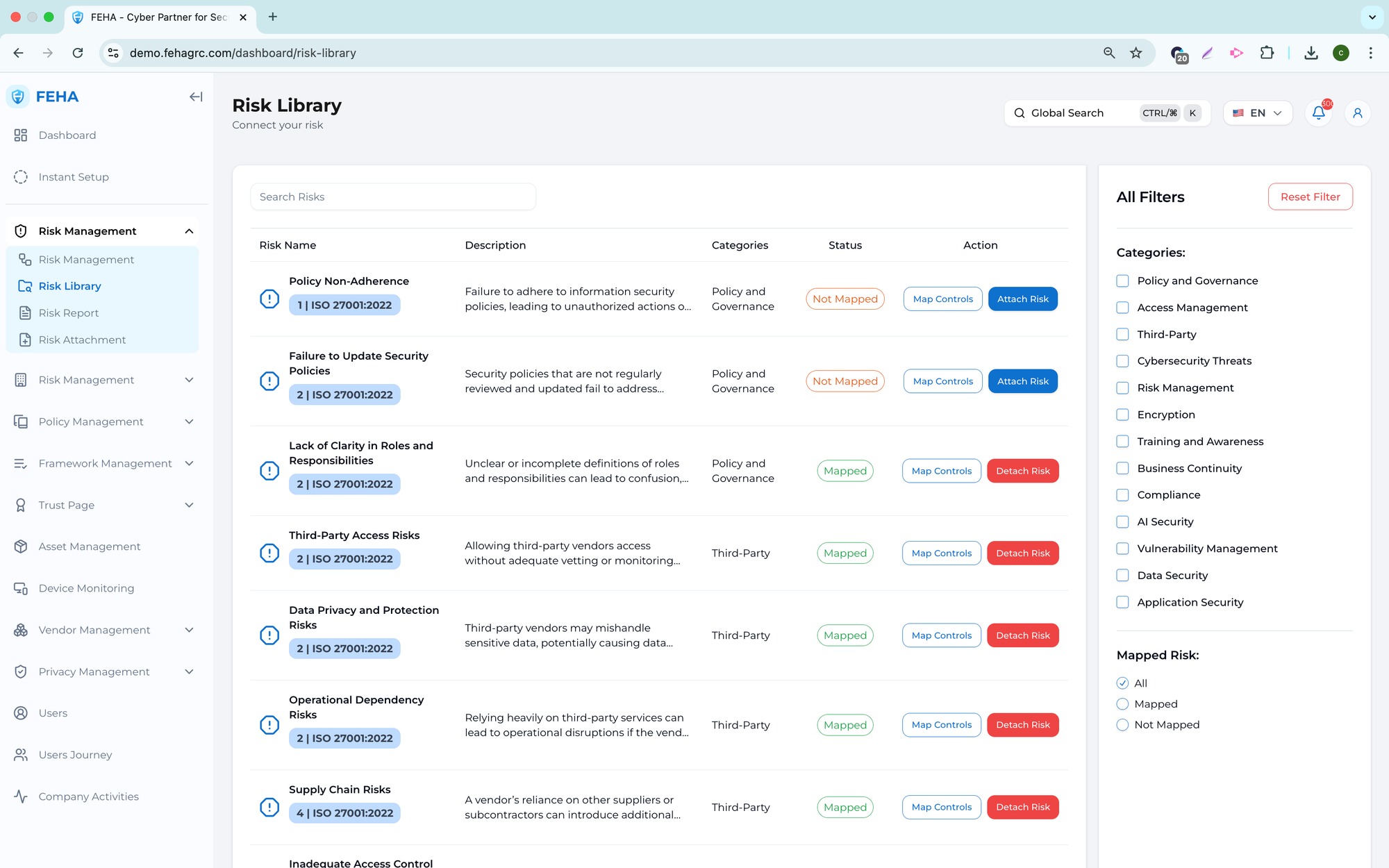
Getting Started
Status: mapped, not mapped
Viewing the Risk Library
This section outlines how to access and review risks in the Risk Library.
- Open the Risk Management module from the main navigation.
- Select the Risk Library submenu.
- Review the displayed list of predefined risks.
- Scroll through the list to view available risk entries.
Searching Risks in the Risk Library
This feature enables users to search for risks by name or keyword.
- Go to the Risk Library page.
- Click the search field.
- Enter the risk name or keyword.
- Review the search results.
Filtering Risks in the Risk Library
This feature enables users to filter risks by attributes such as category or risk type.
- Open the Risk Library page.
- Click the filter option.
- Select the appropriate filter criteria.
- Review the updated list of risks.
Viewing Risk Details from the Risk Library
This feature enables users to access detailed information about a selected risk.
- Go to the Risk Library page.
- Select a risk from the list.
- Select the risk detail view.
- Review the risk description and associated details.
Adding Risks from the Risk Library to the Risk Register
This feature enables users to add predefined risks directly to the Risk Register.
- Go to the Risk Library page.
- Select the relevant risk entry.
- Click Add to Risk Register.
- Confirm your selection.
- Review the added risk in the Risk Register.
Maintaining Consistency Using the Risk Library
The Risk Library supports standardized risk management practices by ensuring consistent risk naming and descriptions across the organization.
We recommend using risks from the Risk Library to maintain consistency and avoid duplication when managing risks at scale.
Risk Reports
The Risk Reports module offers both summary and detailed views of risk data to support monitoring, analysis, and reporting. Users can review risk status, trends, and remediation progress in a structured format for internal review and decision making.
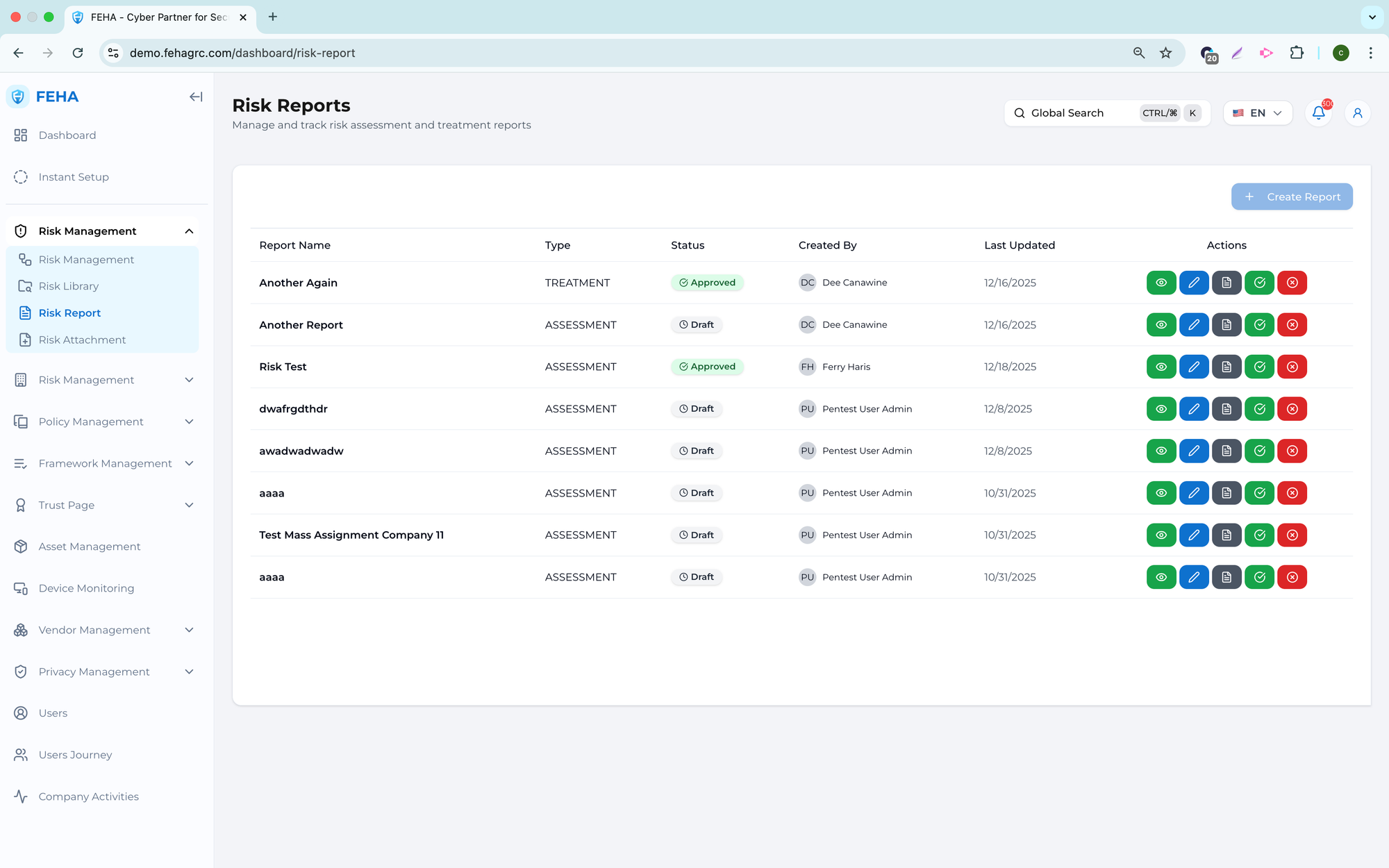
Getting Started
Status: Draft, Approved
Accessing Risk Reports
This section outlines the steps to access the Risk Reports module.
- Open the main navigation menu.
- Select the Risk Management module.
- Select the Risk Reports submenu.
- Review the available risk reports.
Viewing Risk Summary Reports
This feature offers a concise overview of all recorded risks.
- Open the Risk Reports page.
- Select the risk summary view.
- Review the total number of risks and their status distribution.
- Use the summary to identify areas that need attention.
Viewing Risk Status Reports
This report presents risks organized by their current status, such as open or mitigated.
- Open the Risk Reports page.
- Select the risk status report.
- Review risks categorized by status.
- Identify risks that require follow-up actions.
Viewing Risk Treatment Reports
This report offers an overview of risk treatment approaches used throughout the organization.
- Access the Risk Reports page.
- Select the risk treatment report.
- Review risks by treatment type.
- Assess whether treatments align with the organizational risk strategy.
Viewing Risk Ownership Reports
This report presents risks according to assigned ownership.
- Access the Risk Reports page.
- Select the risk ownership report.
- Review risks organized by responsible owner.
- Identify workload distribution and any ownership gaps.
Using Risk Reports for Review and Decision Making
Risk Reports facilitate structured reviews and continuous monitoring of risk posture.
Note: Risk Reports are intended for monitoring and review purposes and do not replace detailed risk analysis performed in the Risk Register.
Risk Attachment
The Risk Attachment feature enables users to link supporting documents to individual risks, ensuring all related evidence is stored and accessible in one location for documentation, traceability, and audit readiness.
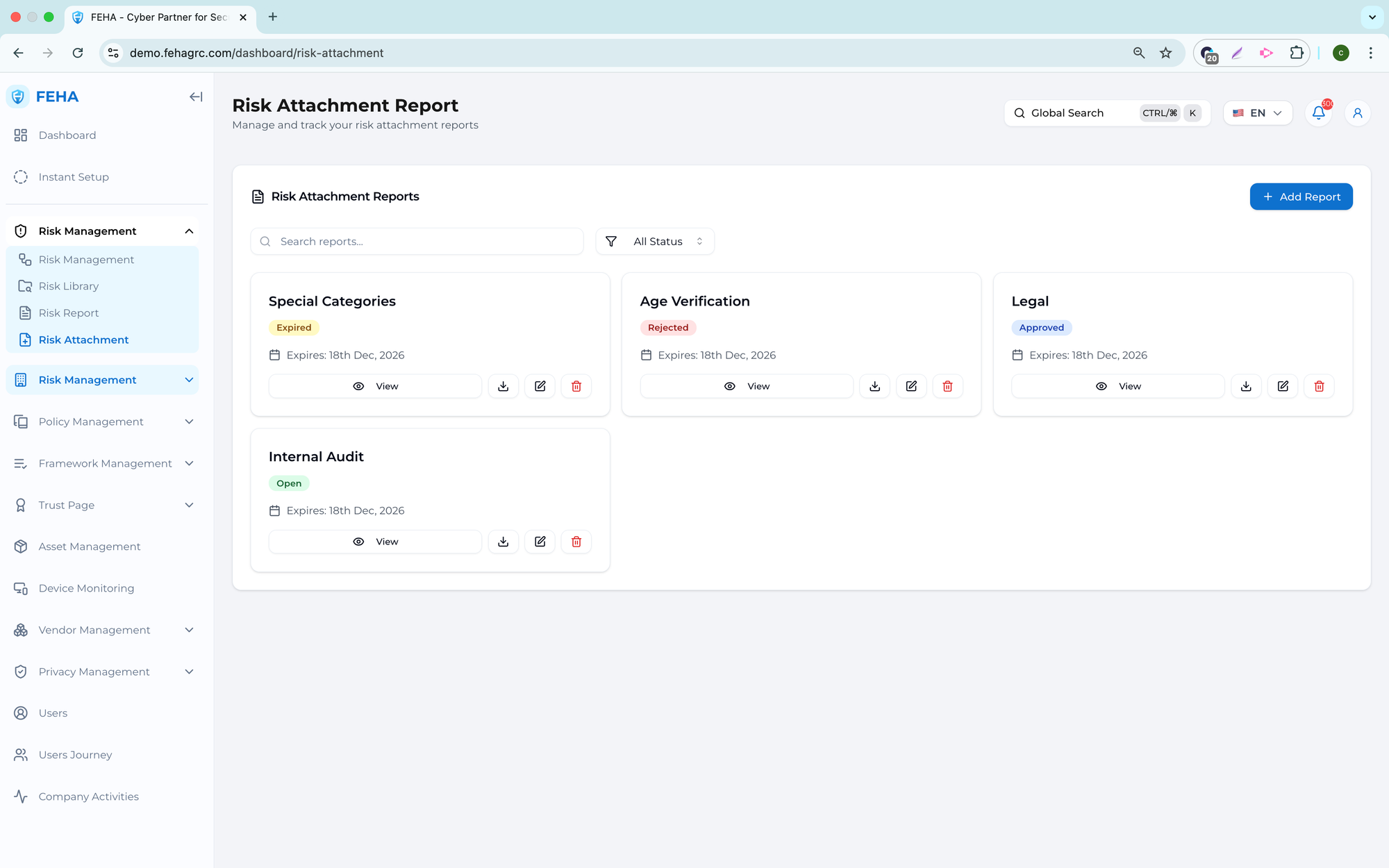
Getting Started
Status: open, approved, rejected, expired
Extension: pdf, doc, docx, csv, xls, xlsx, jpg, jpeg, png
Accessing Risk Attachments
This section outlines how to access the attachment area for a specific risk.
- Go to the Risk Attachment module.
- Select a risk from the list or register.
- Open the risk details page.
- Navigate to the attachment section.
Uploading Risk Attachments
This feature enables users to upload files associated with a specific risk.
- Go to the Risk Attachment module.
- Click + Add Report
- Select a file from your device and fill the fields.
- Confirm the upload.
- Ensure the file appears in the attachment list.
Viewing Risk Attachments
This feature enables users to review uploaded attachments.
- Go to the Risk Attachment module.
- Access the attachment section.
- Select an attachment from the list.
- Open or download the selected file to review its contents.
Downloading Risk Attachments
This feature enables users to download attachments for offline access.
- Navigate to the attachments section on the Risk Attachment module.
- Click download button on an attachment card.
- Save the file to your device.
Managing Risk Attachments
This feature enables basic file attachment management.
- Open the risk attachment module.
- Review the list of attached files.
- Delete outdated or incorrect attachments if allowed.
- Confirm your changes to update the list of attachments.
Using Risk Attachments for Audit Support
Risk attachments provide supporting evidence for risk identification, assessment, and treatment activities.
Please upload relevant and current documents to ensure audit readiness and accurate documentation.