Policy Management
Getting Started
cara membuat policy: upload file, memasukkan manual, dan generate ai
status: draft, pending, approved
hak akses: policy owner, author delegator
policy acknowledge
Policies
The Policy Management module offers tools to manage policies, track assignments, and process external requests. It ensures effective distribution, transparency, and controlled access to policy information.
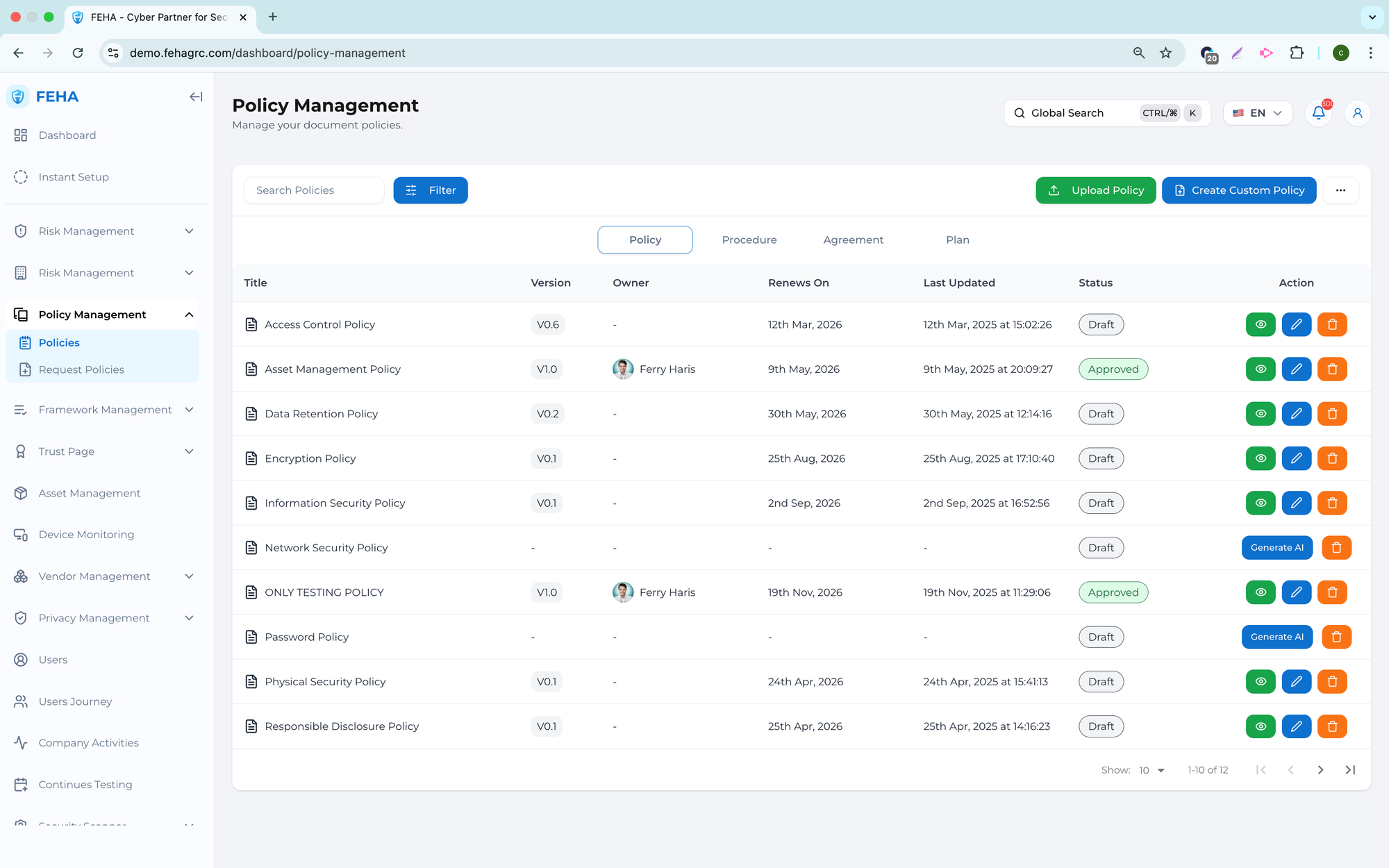
Policy List
This submenu lists all organizational policies.
- Open the Policies module.
- Select the Policy List submenu.
- Review existing policies and their statuses.
- Select a policy to view details as needed.
Creating a Policy
This guide outlines the steps to create a new internal policy.
- Open the Policies module.
- Click 'Create New Policy.'
- Enter the policy title and a brief description.
- Add the policy content or upload the relevant document.
- Save the policy as a draft.
Editing a Policy
This guide outlines the steps to update an existing policy.
- Access the Policy List section.
- Select the policy you wish to update.
- Choose the edit option.
- Make the necessary updates to the policy content or metadata.
- Save your changes.
Policy Assignment
Use this feature to assign policies to users or teams.
- Open the Policies module.
- Select a policy from the list.
- Select the user or group for policy assignment.
- Confirm the assignment.
- Review the assignment status.
Policy Approval
This feature facilitates policy approval prior to publication or enforcement.
- Access the Policies module.
- Review policies pending approval.
- Select a policy to review its details.
- Approve or reject the policy as appropriate.
- Confirm your selection to update the policy status.
Policy Acknowledgement
This feature records user acknowledgement of assigned policies.
- Open the Policies module.
- Select a policy from the list.
- Review the user's acknowledgement status.
- Identify users who have not acknowledged the policy for follow-up as needed.
Policy Version Management
This case outlines the process for maintaining policy versions. Effective version management ensures traceability of all policy updates.
- Access the policy detail page.
- Review the version history.
- Create a new version when updates are necessary.
- Save the updated version to complete the process.
Using Policy Management for Internal Governance
The Policy Management module supports structured internal governance by ensuring that policies are consistently documented, approved, distributed, and acknowledged.
Note: This module is intended for internal policy management and does not include external policy sharing or request handling.
Request Policies
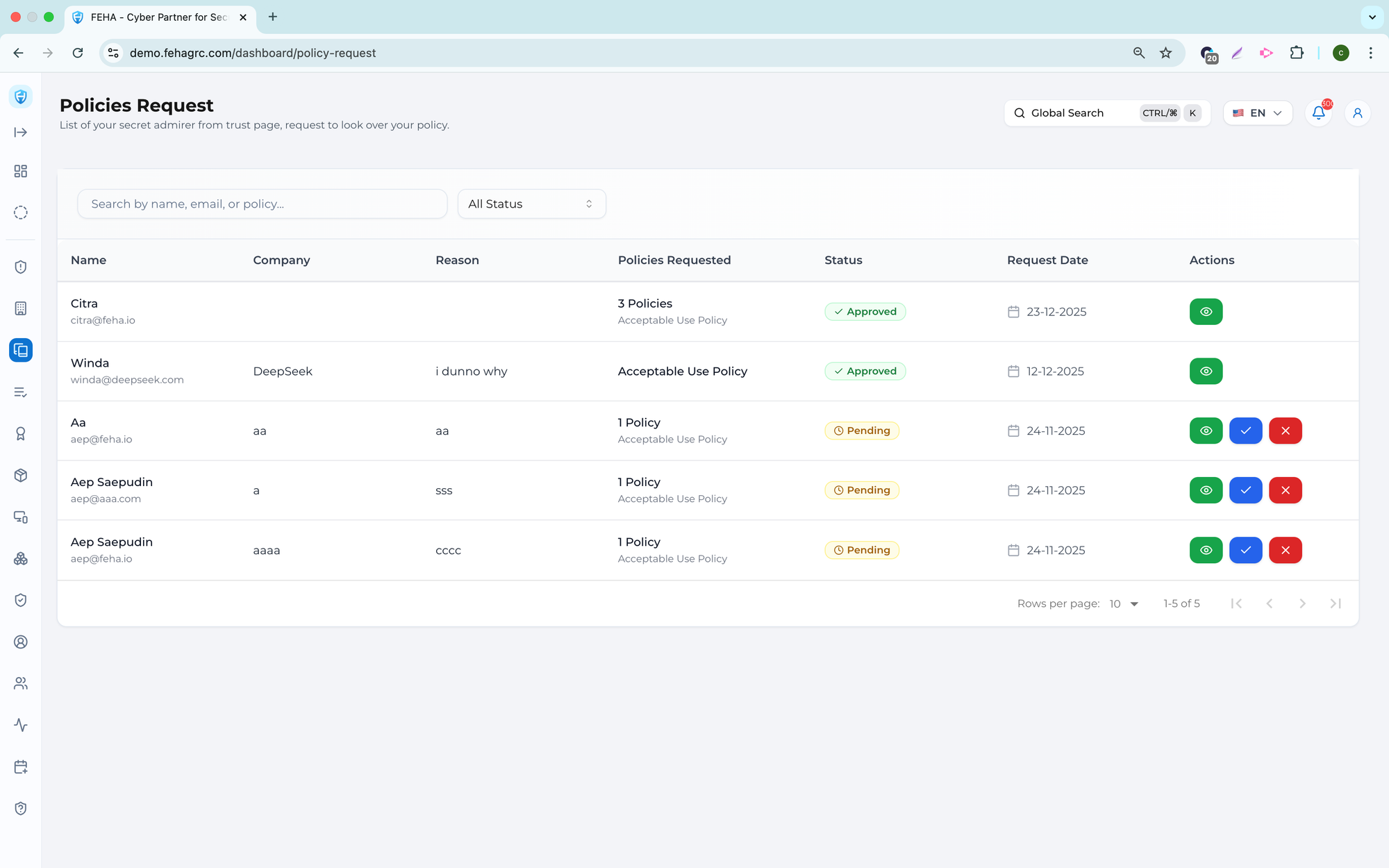
The Request Policies feature manages external policy access requests submitted through the Trust Page. It promotes transparency while ensuring controlled disclosure. All requests undergo internal review before access is granted.
Submitting a Policy Request from the Trust Page
This case describes how an external user submits a policy request.
- Open the Trust Page using the public access link.
- Click Request Access button.
- Select the policy request option.
- Enter the required requester information.
- Submit the policy request.
Please note that access to the policy will only be granted after the request has been reviewed and approved.
Viewing Incoming Policy Requests
This guide outlines the process for internal users to review incoming policy requests.
- Open the Policy Management module.
- Select the Request Policies submenu.
- Review the list of incoming requests.
- Select a request to view detailed information.
Reviewing Policy Request Details
This case outlines the process for reviewing a specific request.
- Select a policy request from the request list.
- Review the requester information and the requested policy.
- Evaluate the request based on internal sharing guidelines.
- Determine if the request meets the criteria for approval.
Approving a Policy Request
This guide outlines the steps to approve a policy request.
- Open the Request Policies submenu.
- Select the approve option.
- Confirm the approval action.
- Grant access to the approved policy as specified.
Note: Approved requests provide access only to the specific policy requested.
Rejecting a Policy Request
This guide outlines the steps to reject a policy request.
- Open the Request Policies submenu.
- Select the Reject option.
- Confirm the rejection.
- Close the request to complete the process.
Tracking Policy Request Status
This guide outlines how to monitor policy request statuses.
- Open the Request Policies submenu.
- Review request statuses, including pending, approved, or rejected.
- Use status information for follow-up or reporting.
Using Request Policies for Transparency and Control
Request Policies enable controlled sharing while ensuring security and compliance.
Please review requests from the Trust Page to confirm they align with organizational disclosure policies.