Framework Management
The Framework Management menu allows you to manage compliance frameworks and their controls. It supports activation, control assignment, evidence management, and progress tracking within a structured workflow.
Getting Started
Evidence Type: mapped, unmapped
Control Status: Not Conform, In Progress, Consultant Review, OFI, Conform, Exclude
Evidence Status: approved, rejected, exclude
AI analysis status: consistent, inconsistent, not implemented
Available framework: ...
Controls
The Controls submenu provides access to framework-specific controls and related activities, including assignment, evidence management, ownership, and review.
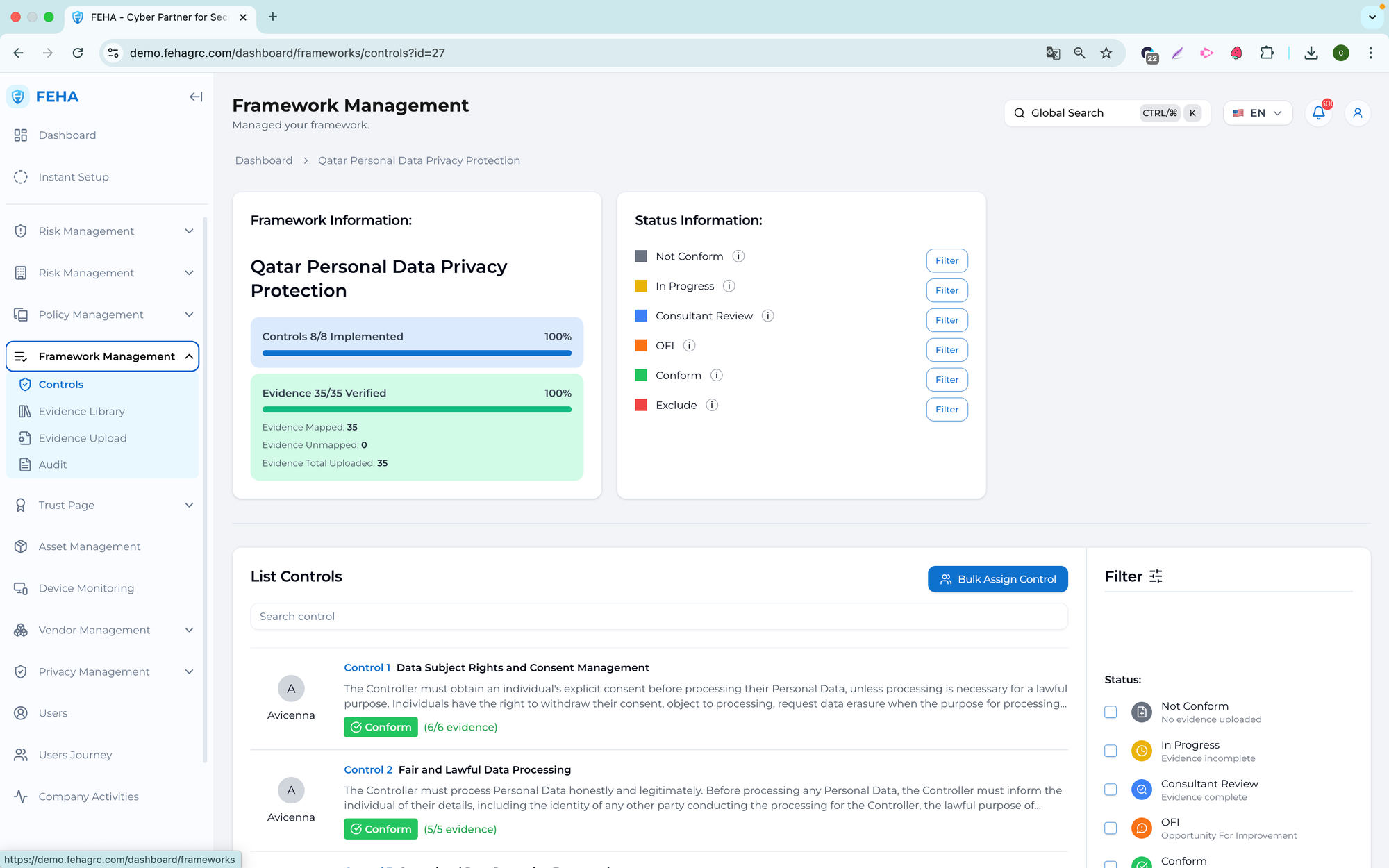
Searching Frameworks
This section explains how to search for a specific framework.
- Open the Frameworks page.
- Select the Search Framework button.
- Enter a keyword in the search field.
- Review the list of matching frameworks.
Filtering Frameworks by Region
This section explains how to filter frameworks by region.
- Open the Frameworks page.
- Select the region filter option.
- Choose the desired region.
- Review the frameworks filtered by the selected region.
Activating a Framework
This section explains how to activate a framework for implementation.
- Open the Frameworks page.
- Select Click to Activate for the desired framework.
- Complete all required fields in the activation form.
- Select Submit.
- Wait for consultant confirmation before continuing.
Note: Framework activation requires review before controls can be assigned.
Bulk Assigning Controls
This section explains how to assign multiple controls at once.
- Open the Frameworks page.
- Select an activated framework.
- Select Bulk Assign Controls.
- Complete the required assignment fields.
- Select Assign Controls to confirm.
Searching Controls
This section explains how to search for controls within an activated framework.
- Open the Frameworks page.
- Select an activated framework.
- Select the Search Control option.
- Enter a keyword in the search field.
- Review the list of matching controls.
Filtering Controls by Status
This section explains how to filter controls by status.
- Open the Frameworks page.
- Select an activated framework.
- Select one or more control status options.
- Review the filtered control list.
Filtering Controls by Evidence Status
This section explains how to filter controls by evidence status.
- Open the Frameworks page.
- Select an activated framework.
- Select an evidence status option.
- Review the filtered control list.
Filtering Controls by Control Owner Status
This section explains how to filter controls by control owner assignment status.
- Open the Frameworks page.
- Select an activated framework.
- Select one or more control owner status options.
- Review the filtered control list.
Filtering Controls by Control Owner
This section explains how to view controls assigned to specific owners.
- Open the Frameworks page.
- Select an activated framework.
- Select a control owner filter value.
- Review the controls assigned to the selected owner.
Uploading Mapped Evidence
This section explains how to upload evidence mapped to a control.
- Open the Frameworks page.
- Select a control.
- Open the Evidences section.
- Select View on the evidence card.
- Select Add Evidence.
- Complete the evidence form.
- Select Add Evidence to save.
Uploading Unmapped Evidence
This section explains how to upload evidence that is not mapped to a specific control.
- Open the Frameworks page.
- Select a control.
- Open the Evidences section.
- Select Add Unmapped Evidence.
- Complete the evidence form.
- Select Add Unmapped Evidence to save.
Delegating Evidence to an Employee
This section explains how to delegate responsibility for evidence to an active employee.
- Open the Frameworks page.
- Select a control.
- Open the Evidences section.
- Select View on the evidence card.
- Select More on the relevant evidence row.
- Select Delegate.
- Choose an active employee.
- Select Save.
Selecting a Control Owner
This section explains how to assign a control owner.
- Open the Frameworks page.
- Select a control.
- Select the Control Owner field.
- Choose a value from the available list.
Excluding Specific Evidence
This section explains how to exclude evidence from assessment.
- Open the Frameworks page.
- Select a control.
- Open the Evidences section.
- Select View on the evidence card.
- Select More on the relevant evidence row.
- Select Exclude.
- Complete the exclusion form.
- Confirm by selecting Exclude Evidence.
Note: Excluded evidence is retained for record purposes but is not considered in the assessment.
Performing AI Analysis on Evidence
This section explains how to analyze evidence using AI.
- Open the Frameworks page.
- Select a control.
- Open the Evidences section.
- Select View on the evidence card.
- Select AI Analysis.
- Review the AI-generated analysis results.
Adding Comments to a Control
This section explains how to add comments to a control.
- Open the Frameworks page.
- Select a control.
- Select the comment field.
- Enter the comment text.
- Select Submit.
Adding Comments to Evidence
This section explains how to add comments to evidence.
- Open the Frameworks page.
- Select a control.
- Open the Evidences section.
- Select View on the evidence card.
- Select View on the relevant evidence row.
- Select View Comment.
- Enter the comment text.
- Select Submit.
Evidence Library
The Evidence Library submenu serves as a centralized repository for managing evidence across frameworks and controls. It enables searching, filtering, uploading, linking, reviewing, and analyzing evidence to support traceability and audit readiness.
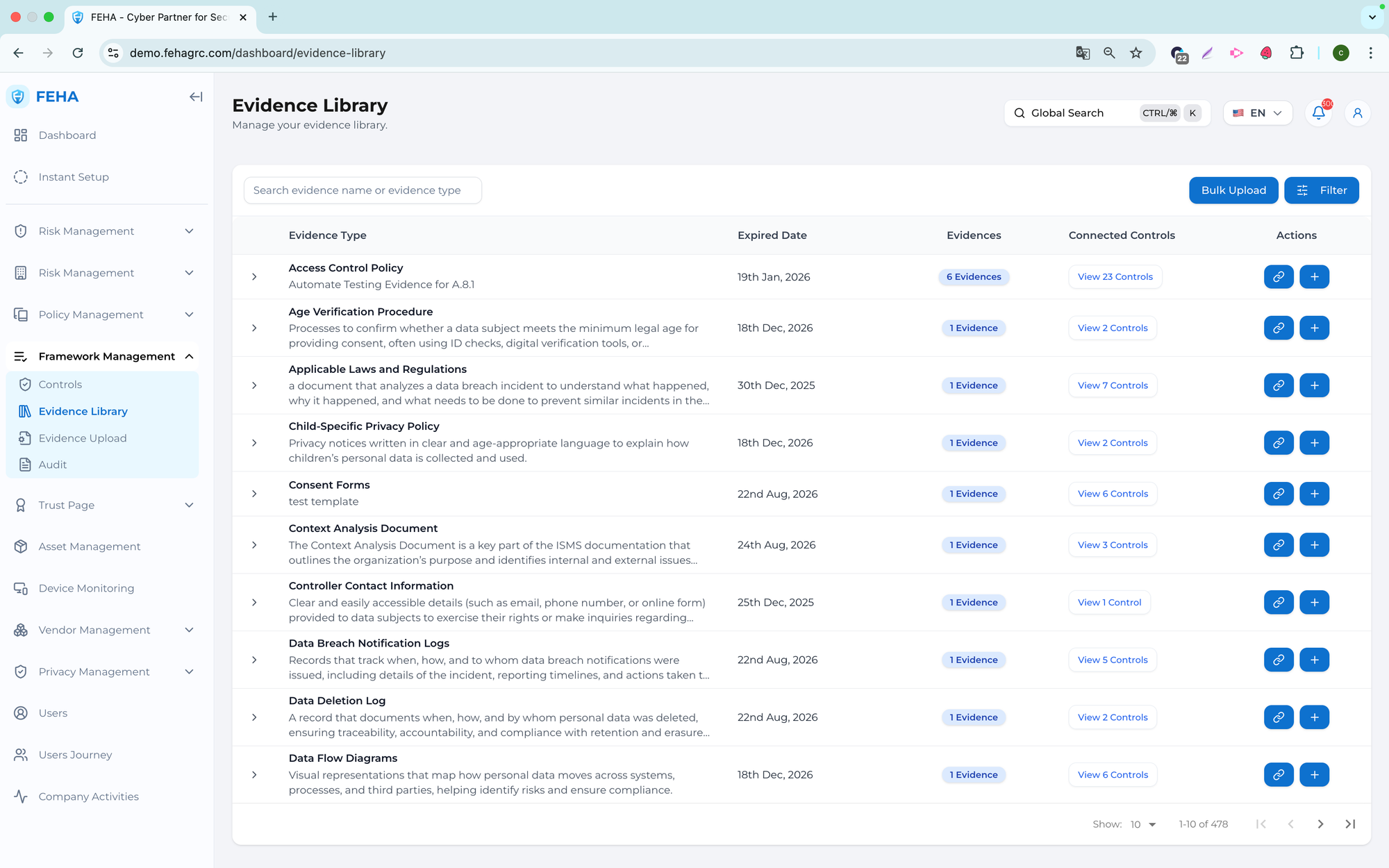
Filtering the Evidence List
This section explains how to filter evidence based on selected criteria.
- Open the Evidence Library page.
- Select the Filter button.
- Select the desired filter values.
- Select Reset Filter to clear filters if needed.
- Review the list of evidence that matches the selected criteria.
Searching for Evidence
This section explains how to search for specific evidence.
- Open the Evidence Library page.
- Select the Search field.
- Enter a keyword or evidence name.
- Review the list of matching evidence.
Uploading Mapped Evidence
This section explains how to upload evidence mapped to a specific control.
- Open the Evidence Library page.
- Select Add Evidence for the relevant evidence row.
- Complete the required fields in the evidence form.
- Select Add Evidence to save the entry.
Bulk Uploading Unmapped Evidence
This case explains how to upload multiple unmapped evidence at once.
- Open the Evidence Library page.
- Select Bulk Upload.
- Select Upload Evidence.
- Drag and drop a zip file containing the evidence files.
- Select Analyze and Preview to proceed.
Note: Uploaded evidence remains unmapped until linked to controls.
Bulk Uploading Mapped Evidence
This case explains how to upload multiple pieces of evidence mapped to selected controls.
- Open the Evidence Library page.
- Select one or more evidence records.
- Select Quick Bulk Upload.
- Drag and drop the evidence files from local storage.
- Select Upload All to complete the upload.
Connecting Evidence to Additional Controls
This section explains how to link evidence to additional relevant controls.
- Open the Evidence Library page.
- Select Connect Evidence for the relevant evidence record.
- Select one or more controls.
- Select Save to confirm the connection.
Adding Comments to Evidence
This section explains how to add comments to an evidence record.
- Open the Evidence Library page.
- Select the relevant evidence record.
- Select View Evidence.
- Select View Comments.
- Select the Comment field to enter your text.
- Enter your comment.
- Select Submit.
Editing Evidence
This section explains how to update evidence information.
- Open the Evidence Library page.
- Select the relevant evidence record.
- Select Edit.
- Update the necessary information in the form.
- Select Edit Evidence to save your changes.
Performing AI Analysis on Evidence
This section explains how to analyze evidence using AI capabilities.
- Open the Evidence Library page.
- Select the evidence row.
- Select Auto Linked Controls with AI.
- Review the AI-generated analysis results.
Viewing Controls Linked to Evidence
This section explains how to view controls associated with a specific evidence record.
- Open the Evidence Library page.
- Select View Controls for the relevant evidence record.
- Review the list of controls linked to the evidence record.
Evidence Upload
The Evidence Upload submenu allows users to upload new evidence and review how evidence is linked to controls. It supports initial submission, control mapping review, and AI-assisted analysis to enhance accuracy and relevance.
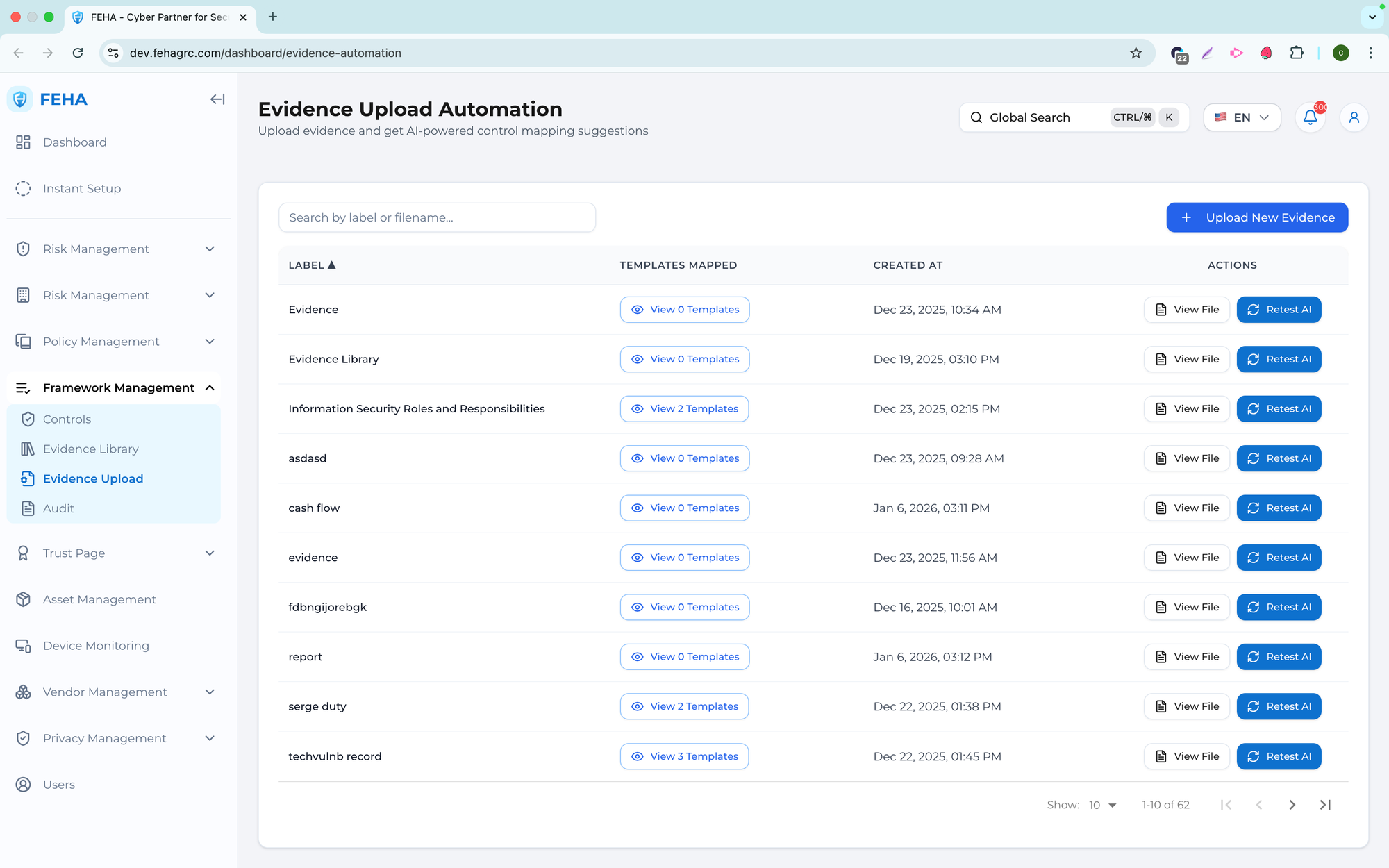
Adding New Evidence
This section outlines the steps to upload a new evidence file.
- Open the Evidence Upload page.
- Select Upload New Evidence.
- Complete the evidence form with the required information.
- Select Upload Evidence to complete the process.
Viewing Controls Linked to Evidence
This section describes how to view controls associated with a specific evidence file.
- Open the Evidence Upload page.
- Select View Templates.
- Review the list of controls linked to the selected evidence.
Performing AI Analysis on Evidence
This section explains how to analyze evidence and receive AI-generated control mapping suggestions.
- Open the Evidence Upload page.
- Select View Templates.
- Review the list of currently linked controls.
- Select Retest AI.
- Review the Control Mapping Suggestions generated by AI.
- Select the relevant controls from the suggestions.
- Select Apply Controls to confirm.
Note: AI suggestions are recommendations and should be reviewed before applying.
Viewing File Content
This section explains how to preview the content of an uploaded file.
- Open the Evidence Upload page.
- Select View File.
- Review the file preview shown on the screen.
Audit
The Audit submenu manages activities related to compliance frameworks, including audit creation, review, evidence preparation, and export for both external and internal purposes.
Adding a New Audit
This section describes how to create a new audit record.
- Open the Audit page.
- Select Create Audit.
- Complete the audit form with the required information.
- Select Create Audit to confirm.
Searching for an Audit by Name
This section describes how to search for an existing audit.
- Open the Audit page.
- Select the Search External Audit field.
- Enter the audit name or keyword.
- Review the list of matching audits.
Editing an Audit
This section describes how to update an existing audit.
- Open the Audit page.
- Select More on the relevant audit row.
- Select Edit.
- Update the audit information in the form.
- Select Update Audit to save changes.
Rebuilding Evidence
This section describes how to rebuild evidence for an audit.
- Open the Audit page.
- Select More on the relevant audit row.
- Select Edit.
- Select Rebuild Evidence.
- Select Proceed with Rebuild to confirm.
Note: Rebuilding evidence refreshes the evidence set based on the current control mappings.
Deleting an Audit
This case explains how to delete an audit.
- Open the Audit page.
- Select More on the relevant audit row.
- Confirm deletion in the confirmation dialog.
Note: Deleted audits cannot be recovered.
Viewing Audit Details
This case explains how to view detailed audit information.
- Open the Audit page.
- Select View Audit.
- Review the audit detail page.
Downloading Audit Evidence as a Zip File
This section describes how to download audit evidence.
- Open the Audit page.
- Select View Audit.
- Review the audit detail page.
- Select Download Zip to download the file.